SafeBrowser - Secure & Private
- 4.4
- Rating
- 100.00K
- Installs
- Free
- Price

 Analysis by App-foxy
SafeBrowser - Secure & Private is a tools app from Smart Utils Dev Team that takes a simple idea and gives it a privacy-focused direction: browsing should feel less exposed and easier to manage. I spent time looking at it from the point of view of someone who wants a cleaner, more private way to visit websites without turning everyday browsing into a technical project. Its store summary calls it an all-inclusive private and smart browser, while the short description uses the name SafeBrowser. Those phrases set a clear expectation, but the real question is whether the app feels comfortable for different people and situations.
My overall impression is cautiously positive. It is free, aimed at everyone, and available for devices running Android 8.0 or later. That broad compatibility makes it practical for people who are not using a recent phone. At the same time, privacy language alone should not make anyone assume that every online risk disappears. I would treat this as a browsing tool with a privacy-minded purpose, not as a complete replacement for careful habits, secure accounts, or a trusted password manager.
How the interface supports readable, manageable browsing
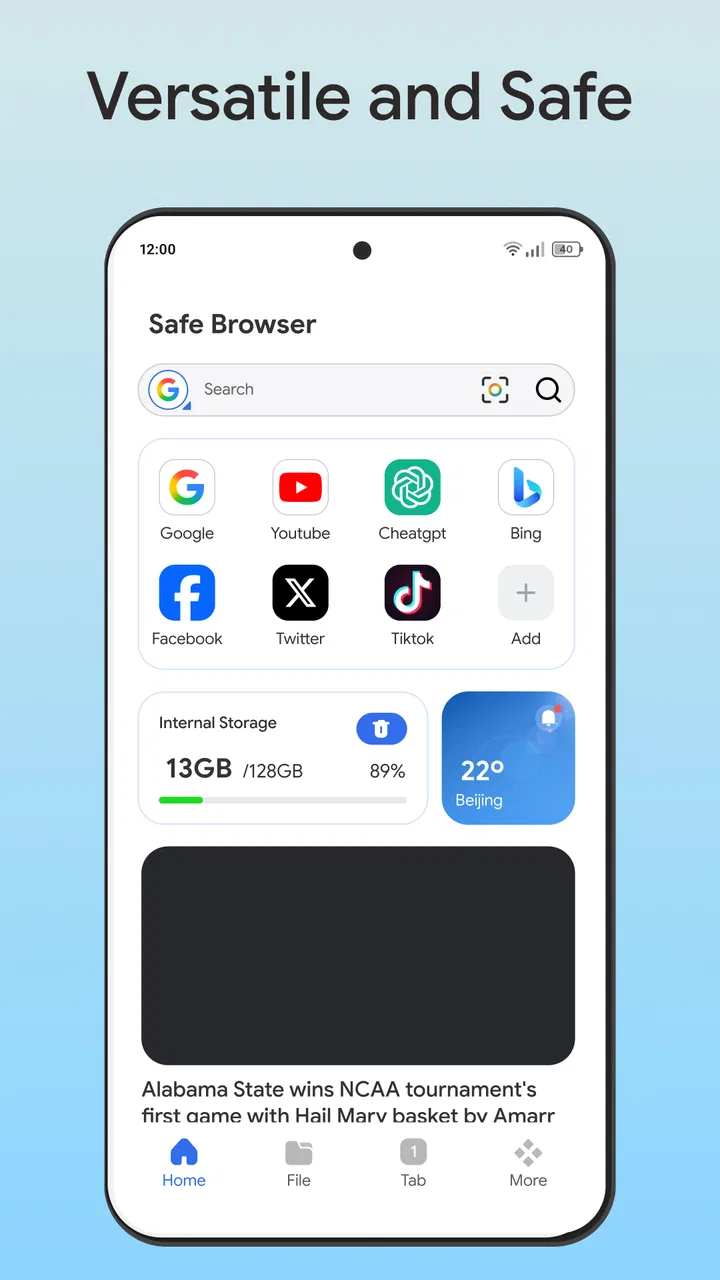
The first thing I look for in a browser is not a long feature list. I want to know whether I can understand where I am, what the current page is doing, and how to return to the previous step without hesitation. SafeBrowser works best when approached with that practical expectation. Its value is in bringing private browsing into a straightforward tools category rather than presenting itself as an advanced technical console.
You May Also Like

 Blood Strike: 2.5 Anniversary
Blood Strike’s Loadouts Turn Every Drop Into a Tactical Gamble
A close look at Blood Strike’s custom loadouts: how fast access to signature weapons reshapes its battle royale rhythm, rewards preparation, and narrows the gap between fights.

 Pandora - Music & Podcasts
Pandora’s Music Is Easy to Start, but Harder to Recover
Pandora’s strength is its low-effort path from a seed to a station. Its weak spot is how much confidence it asks you to place in connection, setup, and quiet recovery.

 8 Ball Pool
 Is Built on Rivalries, Rematches, and Routine
A close look at the rivalries, rematches, shared routines, and unanswered safety questions that turn a quick pool match into a persistent mobile community.

 Samsung Music
’s Quiet Strength Is Playing What You Already Own
Its reach comes less from spectacle than from dependable access to a personal library. That simplicity is both the app’s strongest retention engine and its ceiling.

 AccuWeather: Weather Radar
AccuWeather Review: A Quick, Clear Forecast for Everyday Decisions
For everyday plans, the best forecast is the one you can understand quickly. AccuWeather makes rain timing, radar, and local conditions easy to act on, with a few trade-offs.

 Hill Climb Racing
Why Hill Climb Racing Still Turns Crashes Into One More Run
A tiny car, a bumpy hill and one more upgrade: Hill Climb Racing keeps resurfacing because its simple chaos makes every near-miss feel personal.
More From Our News Desk



For readers who find busy interfaces tiring, a browser needs to reduce visual decision-making. A useful routine is to open only the page needed for the current task, complete that task, and close the session instead of leaving a large collection of pages competing for attention. This approach is particularly helpful when checking a delivery update, reading a short article, or looking up a service on a shared phone.
I also recommend testing the browser with the websites you use most before making it your only browser. A privacy-oriented browser may behave differently from a mainstream browser on pages that depend heavily on scripts, embedded media, sign-in systems, or unusual layouts. If a page does not display properly, switching to another browser for that one task can be more sensible than repeatedly fighting the same screen.
SafeBrowser is likely to suit people who prefer direct navigation over a large ecosystem of add-ons and account-linked features. I would not choose it for a workflow built around extensive desktop synchronization, specialized developer tools, or a large collection of browser extensions. Those needs usually favor a mature mainstream browser with a wider support network.
Reading comfort depends on the website as much as the app
One important distinction is that a private browser cannot automatically make every website accessible. Poorly designed pages can still use tiny text, low contrast, crowded controls, aggressive pop-ups, or confusing forms. SafeBrowser may provide a more private route to those pages, but it does not change the quality of the sites themselves.
For someone with reduced vision, I would start with the phone's own display settings and accessibility tools, then check how pages respond inside the browser. Enlarging text can improve reading, but it can also cause horizontal scrolling or hide buttons on poorly built websites. The most comfortable setup is the one that keeps text readable while preserving access to essential controls.
A practical tip is to use a short test route before relying on the app for an important activity. Open a familiar news page, a shopping form, and a sign-in page. Check whether headings remain understandable, whether buttons are easy to locate, and whether the page stays usable after text enlargement. This reveals more about day-to-day suitability than a general privacy label does.
Navigation habits that reduce confusion
I found that consistent habits matter more than trying to explore every option at once. I would keep a small number of browsing tasks separate: private research in one session, routine account activity in another, and temporary lookups in a third. This makes it easier to remember what I was doing and reduces the chance of entering personal information into the wrong page.
That separation is also useful for people who experience cognitive overload. A browser session can become confusing when several unrelated searches, forms, and sign-in pages are mixed together. Closing a task when it is finished creates a clear stopping point. It is a small workflow change, but it makes a general-purpose browser feel less demanding.
SafeBrowser is not the right choice if you need a browser to remember a complex research project across many devices without manual organization. In that case, a browser with established synchronization and tab-management tools may save more time. The trade-off is that convenience features can involve more account integration, which may not match the priorities of someone choosing this app for privacy.
Motor, sensory, and assistive-use considerations
Motor accessibility is often decided by tiny details: how far a control is from the edge, how much precision a button requires, and whether a gesture can be replaced by a visible control. I would judge SafeBrowser on those everyday interactions rather than assuming that a private browser is automatically easy to operate.
People with limited dexterity may prefer using the phone's system navigation, voice input, or an external keyboard where supported by the device. A browser is more comfortable when the user does not need to perform repeated swipes or tap very small targets. When a page itself has cramped controls, the limitation may come from the website rather than SafeBrowser, but the result is still relevant to the user.
For one-handed use, I would avoid building a routine that depends on reaching every control at the top of a large phone. Instead, I would test the app while holding the device naturally and note whether common actions can be completed without awkward repositioning. This is especially important for commuters, people using mobility aids, or anyone who needs to keep one hand available.
Voice control can make browsing more practical for users who cannot comfortably type or tap for long periods. The browser still has to present pages that respond well to spoken commands, and websites with unlabeled buttons can remain difficult. SafeBrowser can be part of a voice-assisted setup, but it cannot correct every accessibility problem built into a website.
Sensory needs also vary widely. Some people want fewer distractions and less visual clutter, while others rely on strong visual cues to understand where they are. A private browsing experience is not automatically calm or visually simple, because the content comes from thousands of different websites. I would therefore use the phone's contrast, font, magnification, color, and motion settings where appropriate, then check whether the sites used most often remain understandable.
Audio is another area where expectations should stay realistic. Websites may autoplay media, hide captions, or place important information in video and sound. A browser can provide access to that content, but inclusive use still depends on whether the publisher supplies captions, transcripts, keyboard-friendly controls, and clear alternatives. For someone who depends on captions or text-only information, I would test those needs on actual websites before switching completely.
A useful setup for shared and changing environments
SafeBrowser makes the most sense when the browsing context changes frequently. Imagine using a family tablet to check a health appointment, then searching for a gift, and later looking up a private topic. In that situation, a privacy-focused browser can feel more appropriate than leaving every activity in the same familiar browsing trail. I would still sign out of accounts and avoid saving sensitive information on a shared device.
The same applies to a borrowed phone or a temporary device. A private session can reduce the amount of personal browsing history left behind, but it should not be treated as a guarantee that no traces exist anywhere. Websites, network operators, accounts, downloads, and screenshots can all create separate records. The practical lesson is to keep the app's privacy benefit in perspective and combine it with careful handling of files and logins.
Situational access for travel, work, and low-attention moments
A browser is often used when attention is divided. I might check a train page while standing in a station, read instructions while cooking, or look up a product while carrying shopping bags. In those moments, a clear and predictable workflow matters more than advanced customization. SafeBrowser is potentially useful for short, focused tasks, provided the website does not demand lengthy forms or precise interaction.
For travel, I would prepare important information before leaving rather than depending on any browser at the last minute. Network quality, page design, and account verification can all interrupt a task. The app may be a good choice for a quick search in a public setting, but I would not make it the sole plan for boarding passes, emergency contact details, or time-sensitive reservations.
At work, the privacy angle can be helpful when researching a sensitive subject that should not become part of a shared workstation's ordinary browsing trail. However, company devices and networks may have their own monitoring and security rules. Installing a private browser does not override those rules, and employees should follow workplace policy before using it for confidential activity.
For older phones, the minimum requirement of Android 8.0 or later is encouraging because it does not restrict the app to only the newest hardware. Still, an older device may have slower performance, a smaller screen, or limited storage. I would keep expectations focused on ordinary browsing rather than assuming that compatibility guarantees a smooth experience on every phone.
What may still create barriers
The largest barrier is the gap between a private browser's promise and the complexity of modern websites. Some pages are designed around tracking scripts, advertising systems, location checks, or tightly integrated sign-in flows. When privacy protections affect how a page works, the user may have to decide between keeping the privacy preference and completing the task. That trade-off is normal in this category, but it can be frustrating for people who need predictable access.
Another barrier is learning what the app actually does in each situation. A person may install it expecting complete anonymity, then use a personal account, download a file, or reveal identifying information through a form. The app cannot remove the need for judgment. I would explain this clearly to a less technical family member: it is a more privacy-conscious place to browse, not an invisibility cloak.
Users who depend on highly specialized accessibility tools should also be cautious. If a particular screen reader workflow, keyboard shortcut, magnification behavior, or assistive switch is essential, the only reliable test is to use that workflow inside the app with real websites. Mainstream browsers often have more community troubleshooting, documentation, and long-term compatibility testing, which can matter more than a privacy feature when access is non-negotiable.
There is also a social barrier. Friends, relatives, or support workers may be more familiar with a popular browser and may not immediately know how to help with SafeBrowser. That does not make the app unsuitable, but it means the user may need to explain their preferred workflow. For someone who relies on another person for device support, a familiar alternative may be easier to maintain.
I would skip this app if my priority were a deeply integrated browser ecosystem, extensive extension support, advanced synchronization, or guaranteed compatibility with every website used for work and banking. I would also avoid relying on it alone for high-stakes privacy situations without understanding the broader risks of the device, network, account, and website involved.
How it compares with ordinary browsing alternatives
Compared with a typical mainstream browser, SafeBrowser's appeal is its focused identity as a private and smart browsing tool. A mainstream option may be more convenient for saved passwords, cross-device history, extensions, and support articles. SafeBrowser is more attractive when I want to separate a browsing task from my usual digital profile and keep the experience centered on the immediate activity.
Compared with a dedicated privacy setup that combines several specialized tools, it is easier to approach. The compromise is that a single app may not offer the depth, transparency, or fine-grained control that privacy enthusiasts expect from a carefully configured collection of tools. For most people, that simplicity is useful; for experts, it may feel limiting.
The app is free, which lowers the cost of testing it alongside an existing browser. I would use that advantage rather than making an abrupt switch. Install it, try the websites that matter, compare the number of steps needed for common tasks, and keep the browser that best fits each activity. There is no rule saying one app must handle every kind of browsing.
My inclusive verdict after everyday testing
SafeBrowser - Secure & Private is a sensible option for people who want a free tools app with a privacy-first browsing purpose and a relatively broad Android reach. Smart Utils Dev Team has positioned it for general users rather than a narrow technical audience, and the Everyone content rating supports that approachable direction. Its current version is 1.0.5, so I would still judge it by how reliably it handles my own websites and assistive setup rather than by assuming that a newer-looking browser will solve every access problem.
The app has a respectable 4.4 average from around 656 ratings, and it has passed 100K installs. Those figures suggest that people are trying it and responding positively, but they do not answer the accessibility questions that matter to an individual user. A person with low vision, limited dexterity, hearing loss, cognitive fatigue, or a need for voice control should test the exact tasks they perform every day.
My recommendation is to use SafeBrowser as a focused privacy tool, especially for temporary searches, shared-device browsing, and situations where I do not want routine activity mixed with my main browser profile. I would pair it with device-level accessibility settings, careful account habits, and a backup browser for websites that do not behave well.
The best reason to choose SafeBrowser is not the promise of perfect privacy; it is the practical option to make certain browsing tasks more deliberate and less tied to your usual routine. If that matches your needs, the free price makes trying it low-risk. If you require extensive synchronization, specialized assistive compatibility, or absolute predictability across demanding websites, a more established alternative may serve you better.
FAQs for SafeBrowser - Secure & Private
01What is SafeBrowser - Secure & Private, and what does it do?
SafeBrowser - Secure & Private is designed for users who want a more privacy-focused web browsing experience on Android or iOS. It typically emphasizes features such as private browsing, reduced tracking, safer access to websites, and protection against intrusive content. Before downloading, check the app’s current description and permissions because available tools can vary by platform and version.
02Does SafeBrowser - Secure & Private guarantee complete online anonymity?
No browser can guarantee complete anonymity by itself. SafeBrowser may help limit browsing history storage, trackers, cookies, or other forms of online profiling, but your internet provider, visited websites, and installed services may still collect information. For stronger privacy, review the browser’s settings, avoid entering sensitive information on unfamiliar sites, use secure connections, and read the developer’s privacy policy carefully.
03Is SafeBrowser - Secure & Private safe to use for banking and shopping?
The app may be suitable for everyday browsing and accessing websites that use HTTPS, but users should still be cautious with banking, payments, and personal accounts. Confirm that the address begins with HTTPS, verify the correct domain, keep the app updated, and avoid using public Wi-Fi for sensitive transactions. Privacy features do not replace good security habits or official banking applications.
04What permissions does SafeBrowser - Secure & Private require?
A browser commonly needs network access and may request permission to use storage, notifications, the camera for QR codes, or location services depending on its features. During installation, review every requested permission and deny anything that seems unnecessary for your intended use. Permission names and requirements may differ between Android and iOS, so check the store listing and device settings.
05Are there any disadvantages or limitations to using SafeBrowser - Secure & Private?
Privacy-focused browsers can sometimes have limitations compared with mainstream browsers. Certain websites may not display correctly when trackers, scripts, cookies, or advertisements are blocked, and some services may require additional permissions or manual exceptions. Performance can also vary by device and network. Before making it your primary browser, test the sites and features you use most frequently.
Pros
- Blocks many trackers and intrusive ads by default.
- Private browsing helps reduce local browsing history exposure.
- Simple interface makes secure browsing easy for beginners.
- Supports safer browsing on public Wi-Fi networks.
- Useful privacy controls can be adjusted to personal preferences.
Cons
- Some websites may not work correctly with privacy protections enabled.
- Ad blocking can reduce revenue for websites you want to support.
- Advanced privacy features may require extra setup or explanation.
- Browser performance can vary on older Android or iOS devices.
- It may lack some extensions and tools found in major browsers.

SafeBrowser - Secure & Private
Gallery